
Google’s Gemini 3 Pro announcement came with something more interesting than a model upgrade. It came with Antigravity.
At a first glance, Antigravity looks like another AI-powered developer tool. Look closer, and you’ll see Google testing a different idea: what it means to work with agents day to day, not just prompt them.
Antigravity runs on Gemini 3 Pro, but it doesn’t lock you into a single model. It also supports Claude Sonnet 4.5 and OpenAI’s GPT-OSS. More important than the models, though, is how the system behaves once the work begins.
Agents in Antigravity don’t operate in a black box. As they complete tasks, they generate what Google calls Artifacts. These include task lists, execution plans, screenshots, and browser recordings. The goal is simple: show your work.
Instead of digging through long logs of tool calls and partial actions, you get concrete outputs you can review. You can see what the agent did, what it plans to do next, and where it pulled information from. That makes verification faster and more useful, especially when you’re reviewing someone else’s work or coming back to your own a week later.
This focus on visible progress acknowledges a quiet problem with agent systems today: people don’t trust what they can’t inspect. Artifacts are Google’s answer to that trust gap.
Antigravity also changes how you interact with agents during the process. You can leave comments directly on specific Artifacts while the agent keeps working. You don’t have to stop it, rewrite instructions, or reset context. You give feedback where it matters, and the agent adjusts.
There’s also a learning loop built in. Agents can retain useful code snippets or repeatable steps from past work. Over time, that turns them from one-off helpers into systems that remember how your team actually works.


Antigravity is available now in public preview on Windows, macOS, and Linux. It’s free to use, with rate limits that reset every five hours. Google claims most users won’t hit them, which suggests the tool is designed for steady, practical use, not constant prompt hammering.
Getting started with Google Antigravity
Antigravity introduces a different way of working with AI inside a development environment. Instead of centering everything around prompts or chat, it treats agents as long-running collaborators that plan, act, and report their work.
Let’s explore it.
Installation
Antigravity is currently available in public preview. You can use a personal Gmail account to access it.
Start by opening the Antigravity downloads page and selecting the installer for your operating system. Run the installer and complete the setup on your machine. When installation finishes, launch the Antigravity application.
You will see a welcome screen and a short setup flow. Click Next to proceed through each step. The important choices are outlined below.

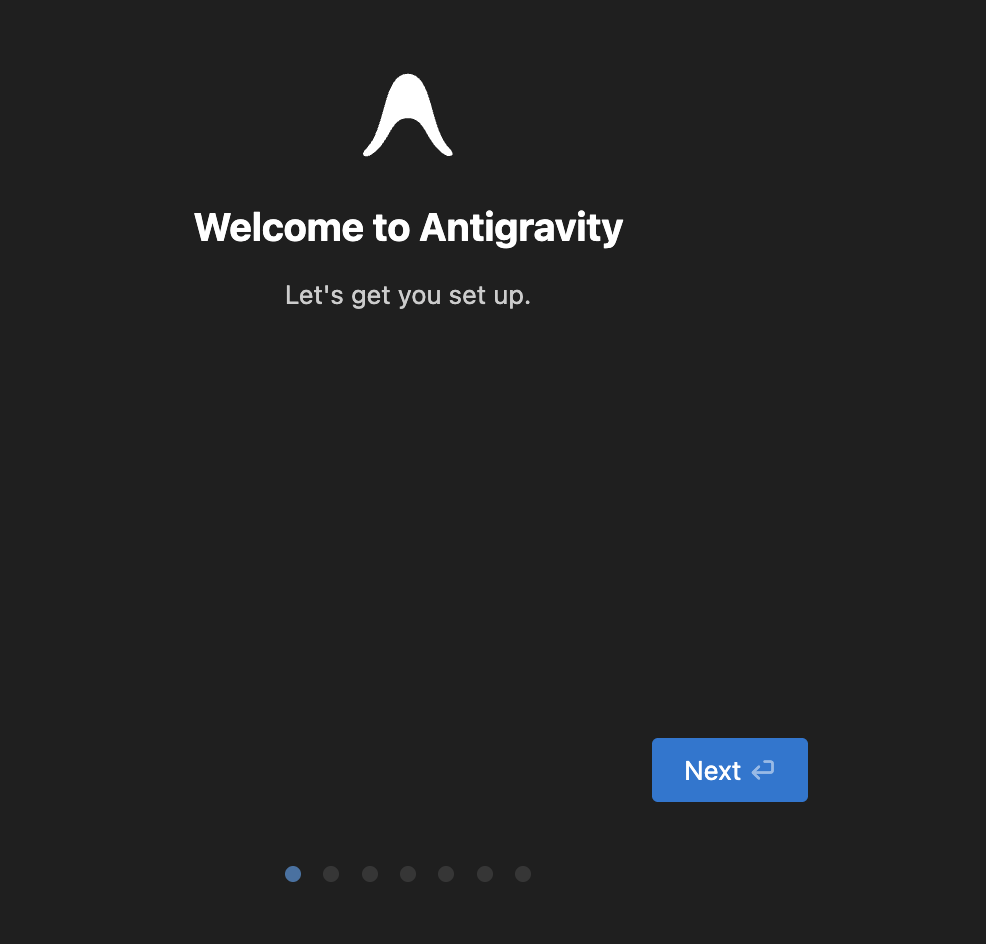
Initial setup options
Setup flow: Antigravity asks whether you want to import settings from VS Code or Cursor. For this walkthrough, choose a fresh setup. You can adjust settings later.
Editor theme: Select a light or dark theme upon your preference
Agent usage mode: At this point, Antigravity asks how much autonomy you want to give the agent. This choice is not permanent and can be changed later.
To understand these options, it helps to look at the two underlying controls shown in the dialog.
Development presets
Antigravity combines the terminal execution and review policies into four presets:
• Agent-driven development
• Agent-assisted development
• Review-driven development
• Custom configuration
| Still, agent-assisted development is the recommended option. It allows the agent to make progress while still checking in when approval is needed. |
Editor preferences: Choose your editor settings as needed.
Google sign-in: Sign in with your personal Gmail account. Antigravity will open a browser window and create a new Chrome profile for authentication. Once sign-in is complete, you will be returned to the application.
Agent manager
Once setup is complete, Antigravity drops you straight into the Agent Manager.
Antigravity is built on top of the open-source VS Code foundation, but the experience is no longer centered on editing files. It’s centered on coordinating agents. Text editing is still there, but it’s no longer the main event.
The interface is split into two primary views:
• Editor
• Agent Manager
Antigravity treats those as different modes instead of forcing everything into a single chat window.

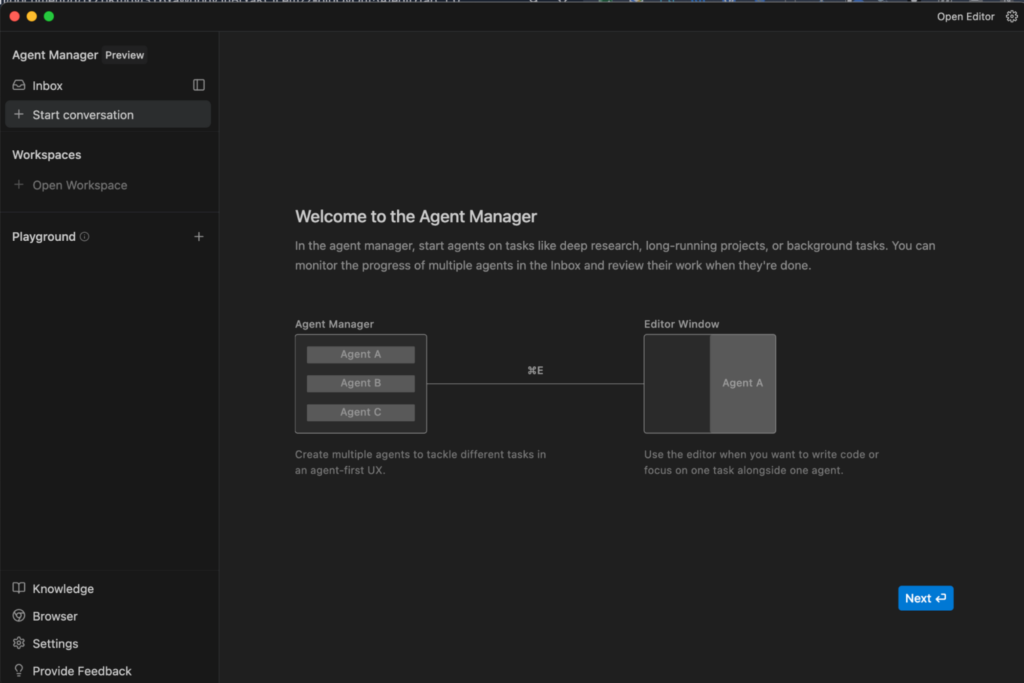
When Antigravity launches, you’re usually greeted by the Agent Manager rather than a file tree.
This view acts as a control center for agent activity. From here, you can spawn multiple agents, assign them separate objectives, and let them run in parallel across different workspaces.
Instead of typing a single prompt and waiting, you define higher-level goals, such as:
• Refactor the authentication module
• Update project dependencies
• Generate a test suite for the billing API
Each request creates its own agent instance. The interface shows these agents side by side, along with their current status, the Artifacts they’ve produced, and whether they’re waiting for human approval.
This design directly addresses a limitation of earlier AI coding tools. Chat-based workflows are linear. You ask a question, wait, respond, and repeat. In the Manager view, you can dispatch five agents to work on five unrelated problems at the same time. You’re no longer blocked by a single thread of interaction.
After clicking Next, Antigravity gives you the option to open a workspace.
A workspace behaves the same way it does in VS Code. You select a local folder, and that folder becomes the working context for agents and the editor.
You can skip this step if you want. Workspaces can be added or changed later.
Once a workspace is selected, Antigravity automatically prepares the Agent Manager to start a new conversation scoped to that folder.
Before starting a task, you’ll notice two important dropdowns.
Model selection lets you choose which model the agent will use. Available options depend on current quotas and include Gemini 3 Pro, along with supported third-party models.
Planning mode controls how the agent approaches the task.
There are two options:
Planning: The agent plans before acting. It groups tasks, produces Artifacts, and documents its reasoning. This mode is better for complex work, research, or changes that affect multiple parts of the system.
Fast: The agent executes directly with minimal planning. This is better for small, localized tasks where speed matters more than deep reasoning.
Planning mode spends more effort upfront. Fast mode trades depth for speed.
| Keep in mind that Gemini 3 Pro usage is quota-limited in preview, and you may see messages when limits are reached. |
At the same time, the Agent Manager window is built around a few core elements.
Inbox
This is where all agent conversations live. Every task you start appears here. Clicking a conversation shows messages, task status, produced Artifacts, and any pending review requests. It’s designed so you can leave a task running and return later without losing context.
Start Conversation
Begins a new task and takes you directly to the input prompt.
Workspaces
Lets you switch between folders or add new ones. You choose the workspace when starting a conversation.
Playground
A scratch area for exploratory work. You can start a conversation here and later convert it into a workspace-based task if needed.
Editor View
Switches from Agent Manager to the traditional editor. You’ll see files, folders, and diffs generated by agents. You can edit files directly or leave inline instructions for the agent to follow.
Browser
Antigravity integrates directly with Chrome. This enables agents to browse, test, and record real interactions. Browser setup is covered next.
| The Agent Manager is not a chat window. It’s a coordination layer for parallel work, designed for people who think in tasks, not prompts. |
Antigravity Browser
Antigravity treats browser interaction as a separate responsibility. When an agent needs to work with the web, it doesn’t reuse the same model that’s handling your code or planning. Instead, it spins up a dedicated browser subagent.
This browser subagent runs a model designed specifically for navigating live web pages. It has access to browser-level tools such as clicking, scrolling, typing, reading console logs, and capturing page structure. It can read pages through DOM inspection, screenshots, or markdown extraction. It can also record video of what it does.
Before any of this works, you need to install the Antigravity browser extension.


Artifacts
Antigravity uses Artifacts to show its work and invite feedback while the work is happening.
Instead of asking you to trust a claim like “the bug is fixed,” the agent produces concrete evidence. Plans, diffs, screenshots, recordings. Things you can inspect without guessing.
This is how Antigravity closes the trust gap that most agent tools still struggle with. Artifacts are not logs. They are readable, reviewable outputs designed for humans.
Antigravity produces several types of artifacts as part of a normal workflow.
Task lists: Before touching code, the agent creates a structured task breakdown. This gives you a clear view of how it plans to approach the work. You usually don’t need to edit it, but you can comment if the direction is off.
Implementation plans: These describe how the agent intends to change your codebase. They include technical decisions, affected files, and sequencing. By default, these are meant for review unless you’ve configured the agent to proceed without approval.
Walkthroughs: After implementation, the agent produces a summary of what changed and how to verify it. This replaces the need to manually diff everything just to understand what happened.
Code diffs: Diffs are shown alongside artifacts so you can review exact changes. While they’re technically separate, they function as part of the same review loop.
Screenshots: For UI-related tasks, the agent captures before-and-after states. This is useful when visual changes matter more than code structure.
Browser recordings: For workflows that involve interaction, the agent records a video of the session. You can watch it click, wait, and validate outcomes without running the app yourself.
Artifacts are available in both main views.
Giving feedback on artifacts
You can leave comments directly on plans, diffs, or steps using Google Docs–style comments. Select a specific part, describe what you want changed, and submit it.
The agent reads that feedback and iterates. That feedback loop is the real value. Artifacts turn agent output into something you can review, correct, and build on, without restarting the task or rewriting prompts.
Editor
The Editor keeps VS Code front and center. That’s intentional. Antigravity is built on the VS Code foundation, and it doesn’t fight existing habits. You get the same file explorer, syntax highlighting, keyboard shortcuts, and extension ecosystem you already rely on. The difference is how tightly the editor is connected to agents.
To open the Editor, click Open Editor in the top-right corner of the Agent Manager.
In a typical setup, you’ll have three things visible:
• the editor
• the terminal
• the agent panel
Also, the editor includes several AI-assisted features that stay out of the way unless you use them.
Auto-complete: As you type, inline completions appear. Press Tab to accept them.
Tab to import: If a dependency is missing, the editor suggests the import and inserts it when you tab.
Tab to jump: The editor can move your cursor to the next logical edit point, which is useful when filling in method bodies or updating repeated patterns.
The editor integrates with diagnostics.
If there’s a highlighted issue, you can hover over it and choose Explain and fix. This sends the problem directly to the agent, scoped to the relevant code.
You can also open the Problems panel and send all reported issues to the agent at once. This works well for cleanup passes or refactors.
Securing the agent
Letting an AI agent touch your terminal and browser comes with real tradeoffs.
Terminal access enables autonomous debugging and deployment. Browser access enables real testing and verification. Both also create obvious risk surfaces, including prompt injection and unintended data access.
Antigravity addresses this with explicit, configurable controls. Nothing is hidden. You decide how much autonomy the agent gets.
Terminal command auto-execution
The main control is the Terminal Command Auto Execution policy. You choose this during setup and can change it later under:
Antigravity → Settings → Advanced Settings → Agent → Terminal
This policy determines when, and if, the agent can run shell commands.
Browser security
Browser automation is powerful, and it carries a different class of risk. An agent can encounter malicious instructions on compromised sites and act on them if left unrestricted.
To reduce this exposure, Antigravity supports a Browser URL Allowlist.
You can find it under:
Antigravity → Settings → Advanced Settings → Browser
From there, open the allowlist file located at:
HOME/.gemini/antigravity/browserAllowlist.txt
Only domains listed in this file are accessible to the browser agent. Anything else is blocked.
This approach limits the agent to known, trusted sources and prevents it from wandering into untrusted pages during automated browsing.
The final words
What sets Antigravity apart isn’t its choice of models: strong models are table stakes now. It’s the focus on inspection, control, and accountability. The system is built with the expectation that agents will fail sometimes, and that humans will want visibility into their decisions, the ability to intervene mid-flight, and the option to reuse what’s already proven to work.
That perspective reflects how agents actually fit into real development teams. Not as magic workers operating in the dark, but as systems - observable, steerable, and ultimately accountable to the people who rely on them.